Configuration Page
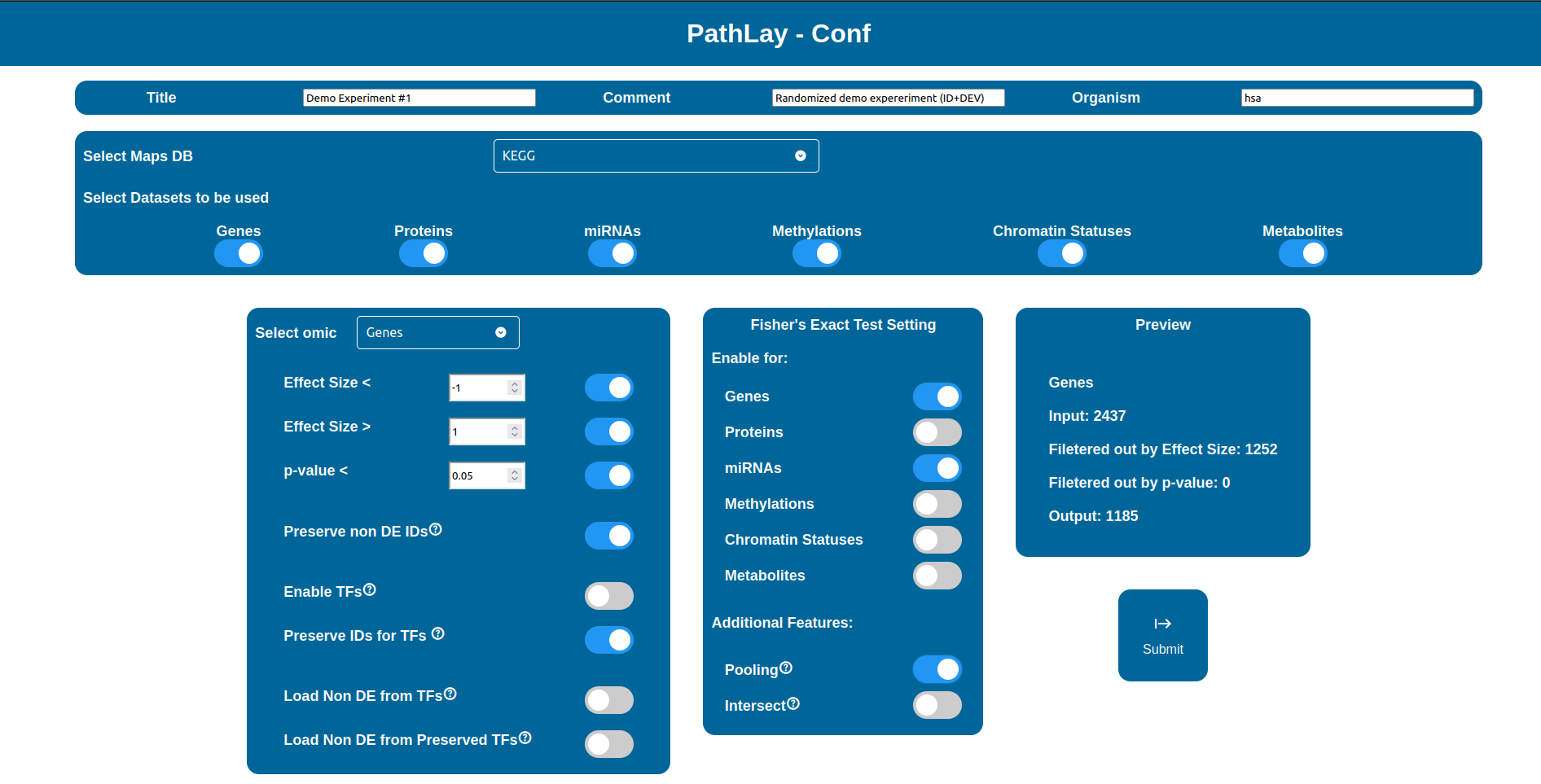
The Configuration Page is accessible by selecting “Analysis Configurator” in the Welcom page and then clicking the “Configure Analysis” button for the desired Experiment Package. If it isn’t the first time you do this, you can also skip the configuration step and run PathLay with the last configuration available by clicking “Run Last Configuration”.
Maps Databases
The “Select Maps DB” selector allows you to choose which database will be used to load pathways from.

Screenshot of the “Select Maps DB” interface in the data selection step.
Note
Databases supported may vary depending on the reference organism selected, as it is now PathLay supports only Homo sapiens and Mus musculus which are both supported by KEGG and WikiPathways.
Data Selection
The “Select Datasets to be used” selector allows you to select the datasets you want to use by simply check the boxes you are interested in between “Genes”, “Proteins”, “miRNAs”, “Methylations”, “Chromatin Status” and “Metabolites”.

Screenshot of the “Select Datasets to be used” interface in the data selection step.
Warning
Whenever a checkbox is disabled, it means that either the dataset was not found available or that the setup in the Home page was not performed accordingly (i.e. the content of the columns was not pointed out correctly).
Configuring Filters for a Dataset
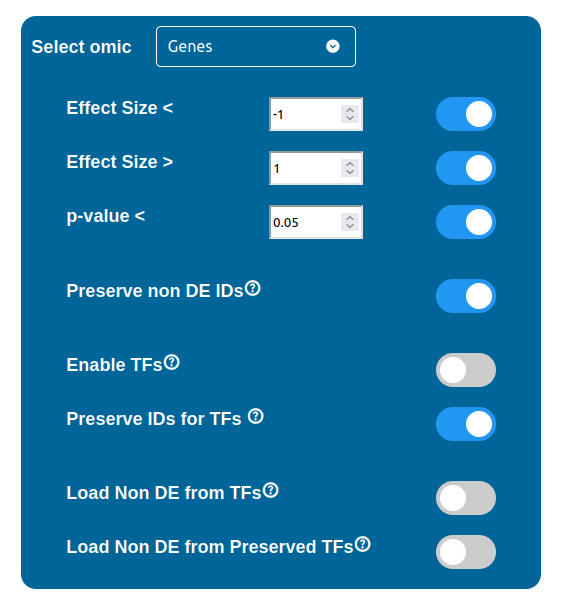
Using the “Select omic” selector you can switch between the filtering configurations available for each dataset. Some of these configurations are common to every data type, while others, related to the Transcription Factors (TFs) and the Non Differentially Expressed components (NoDE), are peculiar to a few of them.
Filtering Options
There are three filters available for each data type, which can be enabled by checking the respective box and requires a threshold value to be written in the input field next to it. These three filters are summarized below:
Effect Size “<” : filters out all the components with an Effect Size value greater than the threshold selected
Effect Size “>” : filters out all the components with an Effect Size value smaller than the threshold selected
p-value “<” : filters out all the components with a p-value value greater than the threshold
Warning
Whenever a threshold field displays a red background, it means that the aforementioned threshold is not valid and contains a typing error. In this situation if the related filter checkbox remains enabled, the submit button will disappear until this error is either fixed by changing the threshold value or by disabling the filter.
ID Preservation
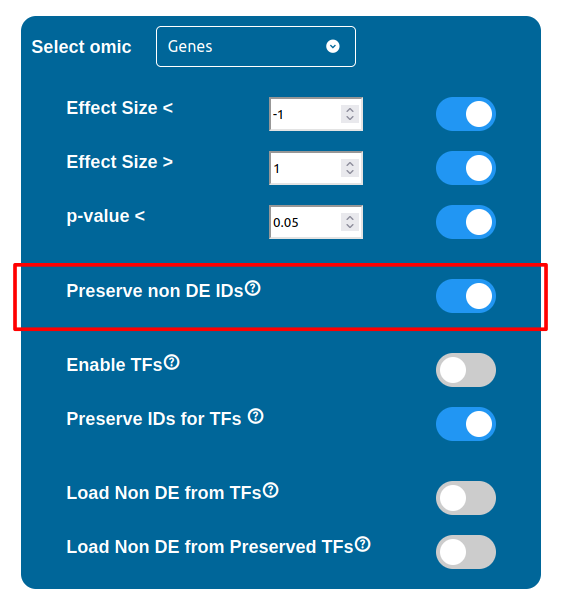
ID Preservation can be enabled for every data type by checking the “Preserve non DE IDs” checkbox. This feature will not let PathLay to discard IDs found in the dataset without an Effect Size value. These “ID Only” components will be represented with a different palette of colors since they do not provide any information regarding their differential expression, but they will be still integrated with the other datasets.
Transcription Factors
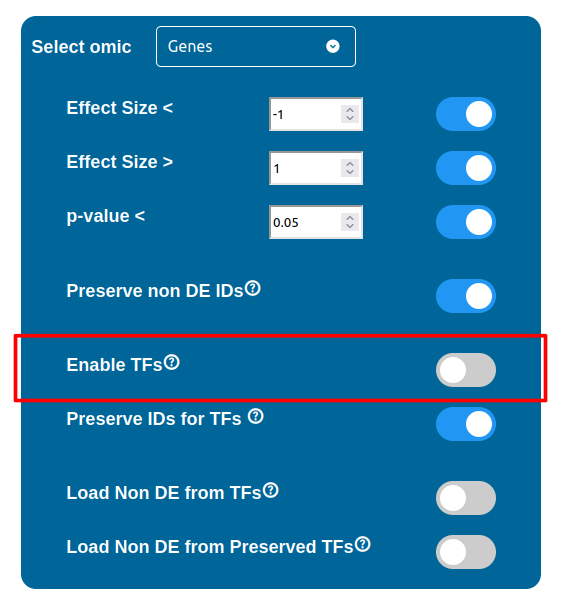
PathLay also supports GTRD as a database and can display transcription factors (TFs) that interacts with genes coming from a Transcriptomic or Proteomic dataset and as well recognize if those gene/protein IDs actually refers directly to a transcription factor. Transcription factors will be loaded and linked to the gene IDs in the Transcriptomic dataset if the “Enable TFs” feature is enabled. The same goes for the proteomic dataset which has its own “Enable TFs” feature. If a transcription factor is found in the Transcriptomic dataset it will be linked to any related gene also present in the dataset. Whenever Transcriptomic and Proteomic datasets are enabled together and the “Enable TFs” feature is enabled for at least one of them, once a TF is recognized, its targets will be looked for both in the Transcriptomic and Proteomic dataset to guarantee an high level degree of integration.
Transcription Factors ID Preservation
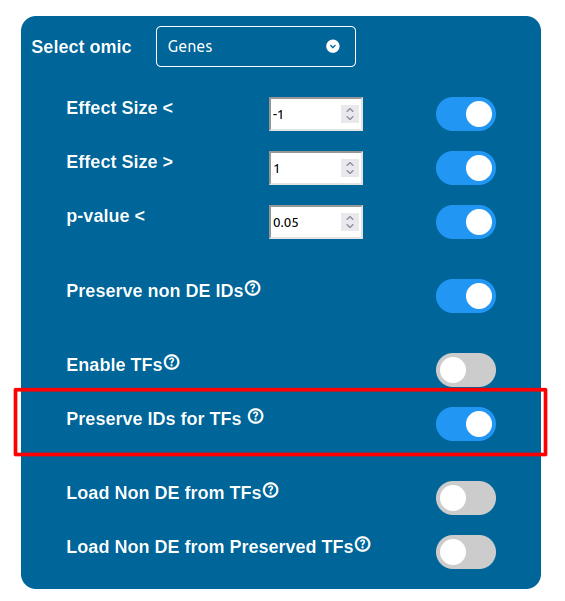
Normally, if a Transcription Factor is recognized in an ID Only component found in the Transcriptomic or Proteomic dataset (when of course the “Preserve non DE IDs” feature is enabled for them), it is just loaded as a DE component and not represented as a TF. To overcome this, one should enable the “Preserve IDs for TFs” feature in the Gene or Protein configuration depending on the scope of the analysis. Transcription Factors recognized in this manner will be represented as small oragne squares on the right side of the main indicators.
Non Differentially Expressed IDs
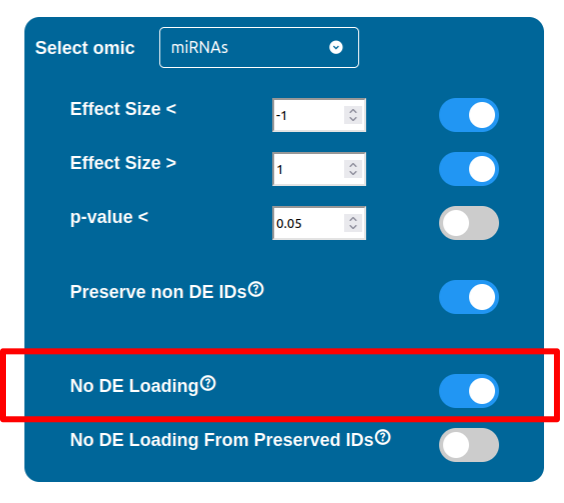
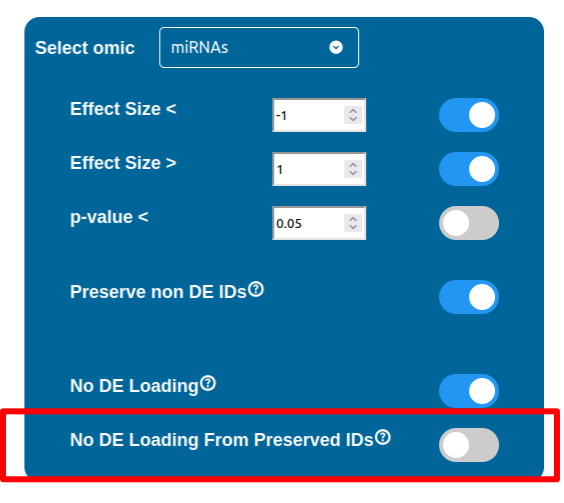
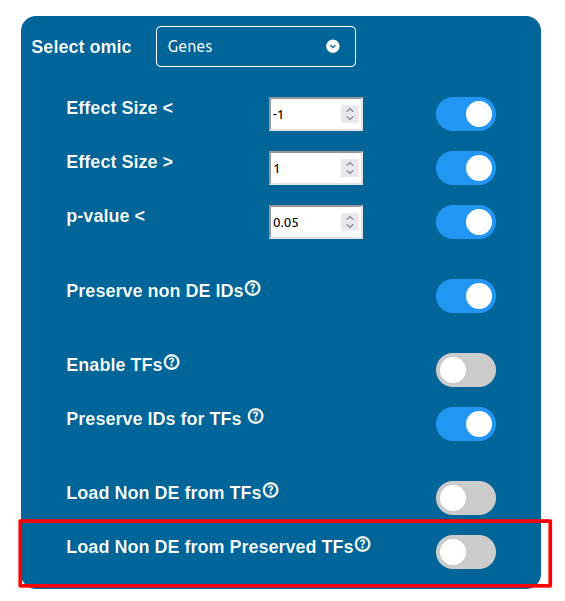
Whenever a miRNa, Methylation or Chromatin status dataset is enabled, miRNas, methylations and chromatin statuses will be represented alongside the related genes. PathLays’s approach is to integrate the information held within different datasets whenever is possible, hence when a Transcriptomic or Proteomic dataset is provided and enabled alongside the afromentioned ones, the standard procedure adopted is to represent an integration of these informations using genes and proteins provided as a scaffold on which miRNAs, methylations and chromatin statuses impact. Anyway It is possible to represent miRNas, methylations or chromatin statuses despite the absence of their related genes in the Transcriptomic dataset, by checking the “No DE Loading” feature in their respective configurations. This feature allows PathLay to display miRnas, methylations and chromatin statuses on grey indicators that represent a non-differentially expressed gene (i.e. a gene not provided in other datasets). This feature specifically works with the IDs of miRNAs, methylations and chromatin statuses linked to an Effect Size value, while the IDs without an Effect Size value will be only linked and represented alongside those genes or proteins that are effectively provided by their respectiv datasets, unless the “No DE Loading From Preserved IDs” feature is enabled. By doing this, ID only components coming from these thre datasets will also be able to call out Non DE genes and proteins. Graphically speaking this is translated into grey indicators surrounded by smaller circles and squares coloured in orange.
Loading Non Differentially Expressed IDs from TFs
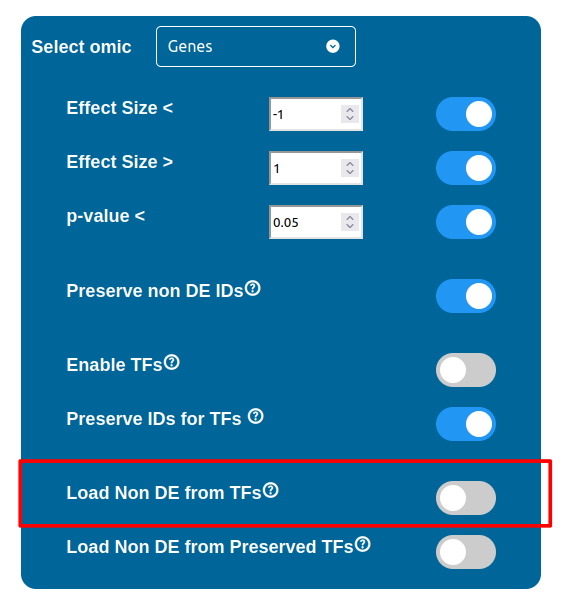
The “Load Non DE from TFs” feature provides the possibility to let any differentially expressed TF found to be linked to genes and proteins not provided in the datasets, in a similar fashion of the “No DE Loading” feature seen in the miRNAs, Methylations and Chromatin Statuses configurations. As previously explained, ID only components will not be allowed to call out for Non Differentially Expressed Genes or Proteins unless this feature is manually enabled and TFs make no exception in this regard: enabling the “Load Non DE from Preserved TFs” feature will do the job.
Maps Restriction Procedure
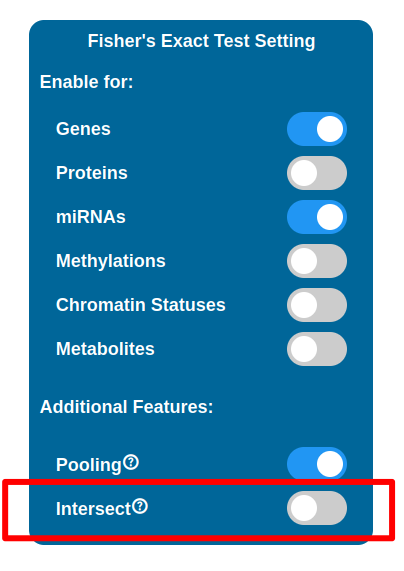
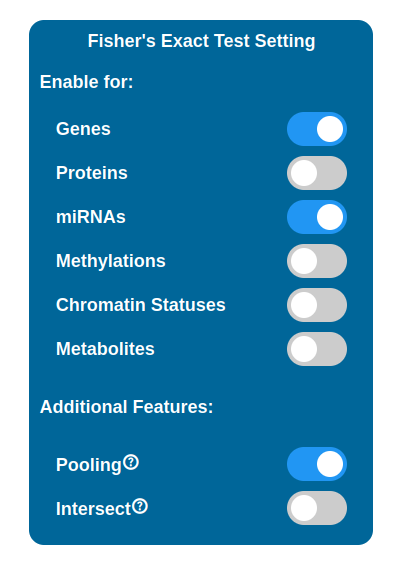
It is possible to perform a selection of maps to display in the PathLay - MAPS page by enabling Fisher’s Exact Test for desired datasets. Maps are selected with a statistical approach based on the Fisher’s Exact Test and since PathLay integrates different datasets, it is also possible to select which dataset will contribute on the map selection. By default the test is performed on each dataset enabled and it will produce a list of maps considered of importance, all the lists produced are then joined into one. There are two tweaks available that can change the result of this step: the Intersect option and the Pooling option.
Warning
To perform the test you need to provide a dataset that holds a p-value column.
Pooling
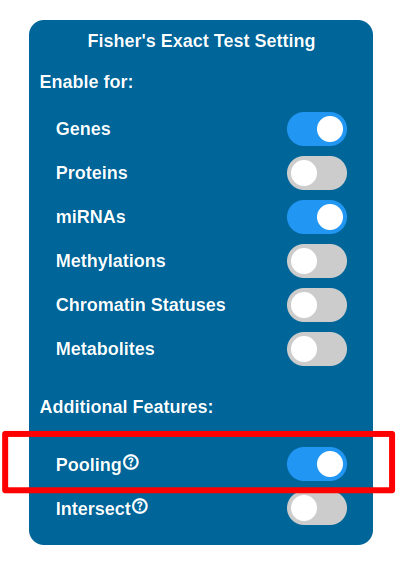
Eabling the Pooling option will affect how the Transcriptomic, Proteomic, miRNomic, Methylomic and Cromatin Status datasets are treated when enabled for the test. When enabled, the IDs of the above datasets will be merged and the test is performed on that single list.
Intersect
Enabling the Intersect option will affect which maps will be selected after the test has been performed. By default map lists are joined into one, meaning that even if a map has been found relevant in relation to just one of the datasets, it will be kept and indicators will be plotted on it. With the Intersect feature enabled, only maps that are considered relevant for all the datasets enabled are kept (i.e. the ones that appear in every map list coming from the tests performed).